To start tracking vehicles you need to add them to the worklist. See how to do it manually and automatically in the FiOS fleet management system. Plus, learn to quickly clear your monitoring list without deleting units from the system.
HAZER is the IoT platform to manage moving and stationary objects via sensors and other IoT devices. HAZER displays all sensors on a handy Dashboard.
Depending on a job position, people should have access to different Dashboards. This video explains how to share a sensor monitoring dashboard with various users. You will also learn how to manage shared Dashboards – delete and view as a user.
HAZER is the IoT platform to manage vehicles and buildings through sensors and other IoT devices. You can monitor sensor values online and view detailed real-time analytics on special Dashboards.
Insights Dashboards show analytics based on data from IoT devices – electricity, water, gas, fuel, temperature, humidity, vibration, g-values, and any sensors you can imagine – in the form of graphs and pie charts.
This video explains how to create the Insights Dashboard and elaborates on each parameter you will need to configure it. The tutorial is based on real-life HAZER use-cases.
EPORT is the software for 3PL service providers. It allows managing carriers, customers, drivers, cargo on a single screen. This video features 3PL KPI Dashboards, including:
1. How to access the Dashboard? 2. How to filter KPIs by a client, vehicle, operation, etc.? 3. How to compare KPIs for different periods? 4. How to view order statistics: unassigned, total, delivered, in transit, canceled, etc.? 5. How to manage 3PL costs?
EPORT is the software for 3PL service providers. It allows taking full-chain logistics under control and consolidating carriers, drivers, clients, and orders in a single interface.
EPORT also helps to digitalize shipment-related documents and manage them on your laptop. This video explains how to attach documents to deliveries and ensure that you have the necessary documents at hand for uninterrupted logistics.
EPORT helps to build a delivery ecosystem and build a control center for all 3PL activities. 3PL service providers, carriers, and customers can work in a single system and make all the associated processes transparent.
This video tells how to create a partner on EPORT. It can be a customer, supplier, or any other user. You will learn how to:
- Add a partner with detailed descriptions and contact information. - Manage event-based notifications for the partner.
GOFER is an Uber-like platform for company transport and business ride management. It comprises a web version and mobile apps for drivers, dispatchers, and managers.
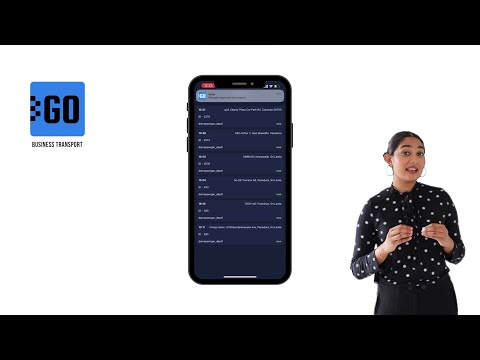
This video explains how to use the mobile app for dispatchers:
✅ View all trip requests approved by a manager; ✅ Check the trip details and assign a vehicle to it; ✅ Edit the requests subject to the emerging requirements.
GOFER is an Uber-like platform for business ride management and company car booking. It allows managing employee transport across multiple branches in a single interface.
This video explains how to use GOFER as a Branch Manager who supervises all staff transportation processes in the company, including:
- Creating managers, drivers, and passengers. - Configuring price plans for each branch, vehicle type, and class.
Need more information? Request a live demo via the chat in the lower right corner.
GOFER is an Uber-like platform for business rides. It automates company fleet management and makes operations more transparent via:
- Car booking on your smartphone or laptop - Fleet utilization analysis - Payments to drivers and fleet expense management - Employee control outside the office
This video explains how to request and get a dispatcher’s approval for a business ride, including:
- How to view all vehicle requests? - How to edit car bookings – vehicle type and class, date and time, purpose, and payer? - How to confirm or reject the ride? - How to add dispatchers’ comments?
Need more information? Request a live demo via the chat in the lower right corner.